TradFi Connector Step-by-Step
Step-by-step guide to connecting your brokerage and banking accounts to AssetView using the TradFi Connector.
Step-by-Step Guide to Connect Brokerage and Banking Accounts to AssetView
- Select "Connectors" in the left navigation menu.
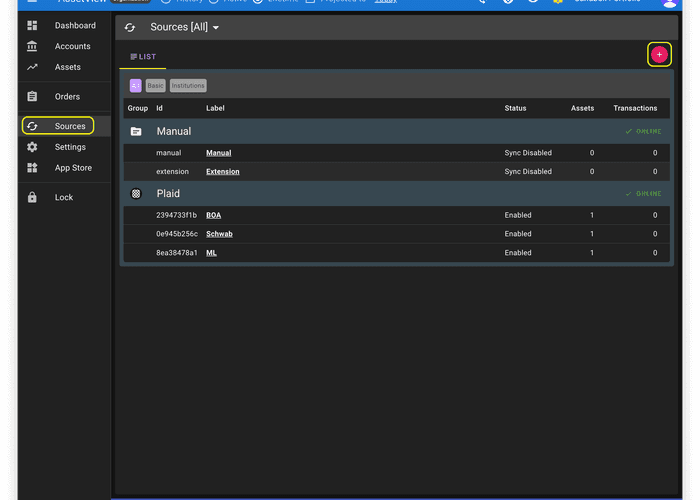
- Select "Plaid" as your Connector.
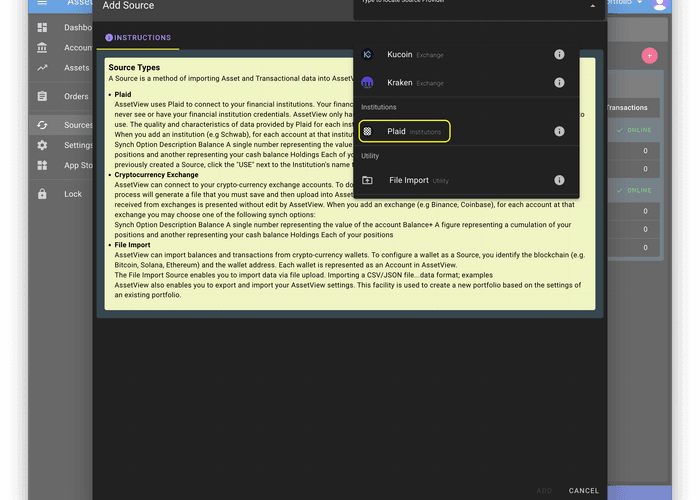
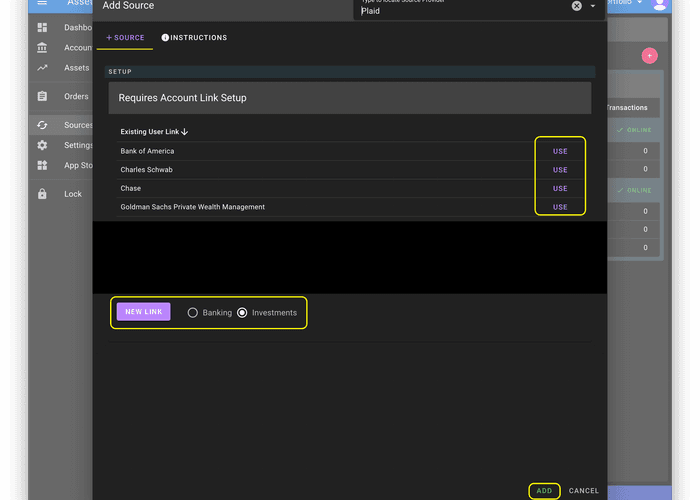
- Choose to "Use" an existing link if possible. If no link is available, click the "New Link" button.
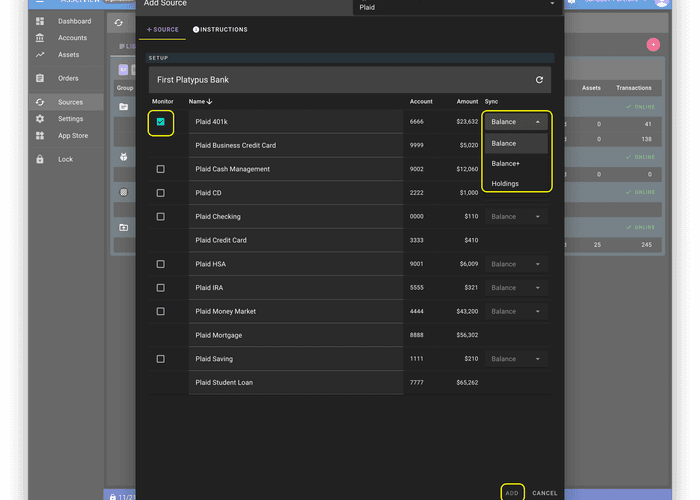
- If you chose to "Use" an existing link, the institution's configuration screen will show. On that screen, select which account to monitor and, for each, select the Sync Option (e.g. Balance, Holdings) as described above.
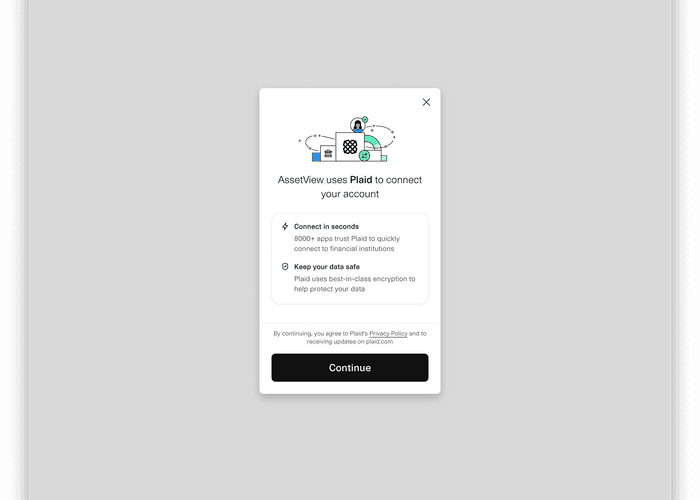
- If you choose to create a New Link, Plaid's landing page will appear. On that page, click Continue.
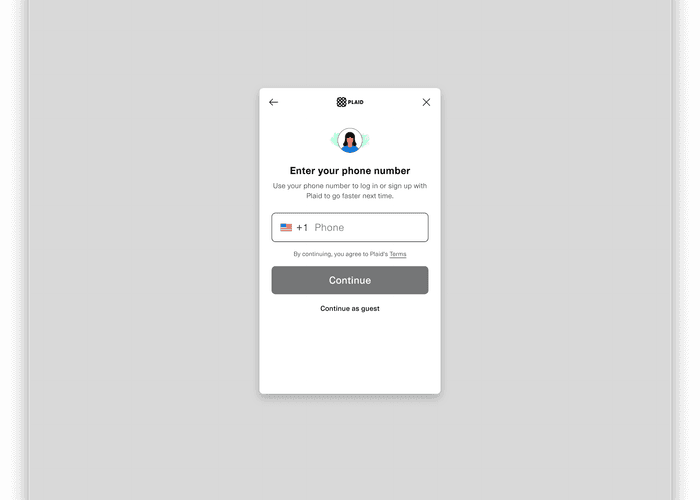
- Plaid requires you to enter your phone number for verification. After you enter your phone number and click "Continue", Plaid will text you a verification code.
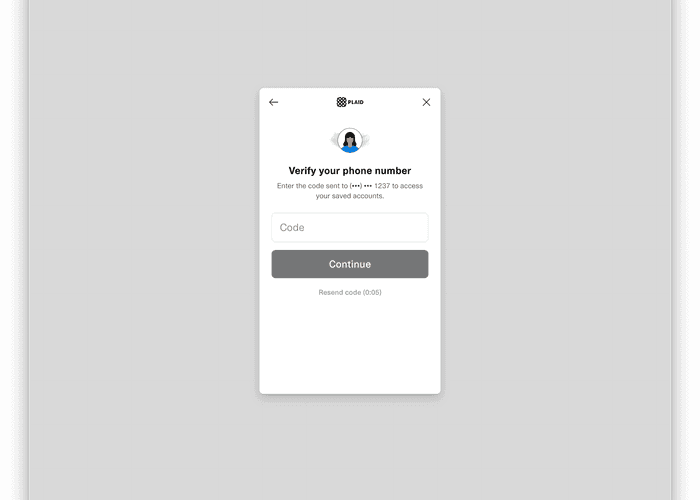
- Enter the code from the text you received.
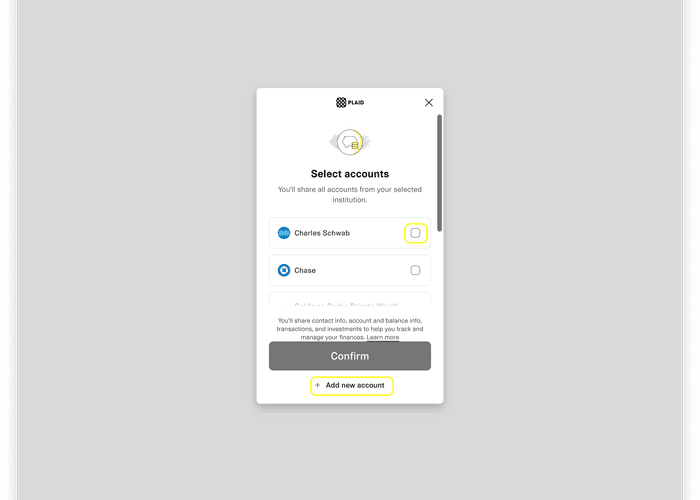
- You may then select an existing connection or click the "+ Add new account" button.
- If you choose to "Use" an existing connection, you will be taken to the login facility for that institution. The login may require you to enter your credentials for the financial institution into Plaid or you will be redirected to log directly in through your financial institution's log in page.
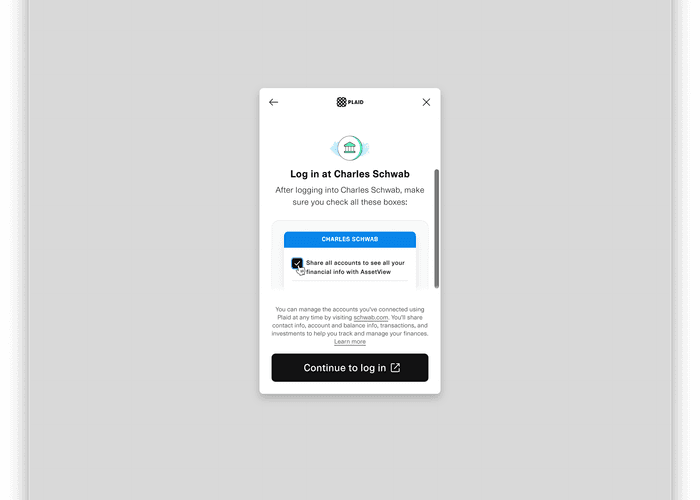
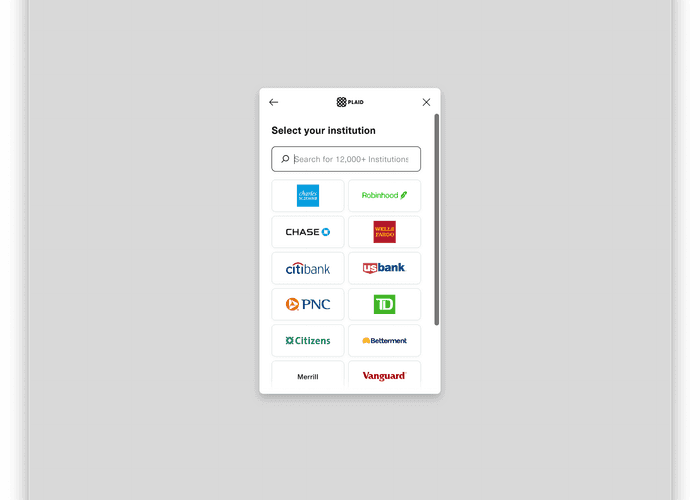
- If you clicked the "+ Add new account" button, you will be shown Plaid's interface to select your financial institution. Once you select the financial institution, you will be taken to the login facility for that financial institution as described above in step 9.
- Once you have completed the above steps, AssetView will run a Sync process to synchronize information between your financial institution(s) and Assetview.
- Apps are customizations that modify, extend, or create additional functionality in AssetView
- AssetView Apps are transformative, enriching the way you interact with AssetView.